

What is Group Mode?
With Group Mode, you and your companions can gather in the same space simply by opening a map with the same “group name.” Everyone who gathers there can share their current location, chat, and the route they have walked. Only people who have opened the same group name are shown, so no one else can see you.
Group Mode can be used only on paid-plan maps. It is not available on the free plan.
- Getting started with Group Mode
- Choosing a character
- “View only” mode
- Location sharing mode
- Sharing the route you walked
- Chatting with others
- Comments and pin marks
- User list
1. Getting started with Group Mode
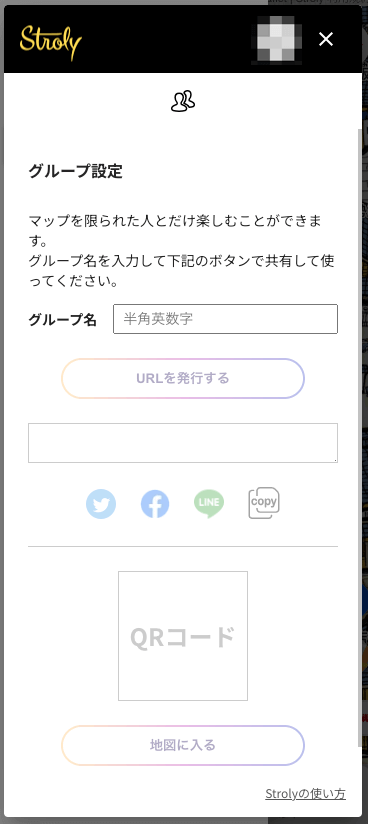
You can start Group Mode from “Group Mode” in the map’s settings button. Enter a group name and click “Issue URL” to generate a new URL for the group. You can also share it to social media from this screen.
Editing the group name directly in the URL
If you do not use the generation screen, you can specify a group with the parameter at the end of the map URL. For example, in https://stroly.com/viewer/1608618697/?room=stroly, the group name is specified by room=stroly.
Anyone who knows the group name can join. If another user happens to use the same group name, that user will also join the same map.
2. Choosing a character
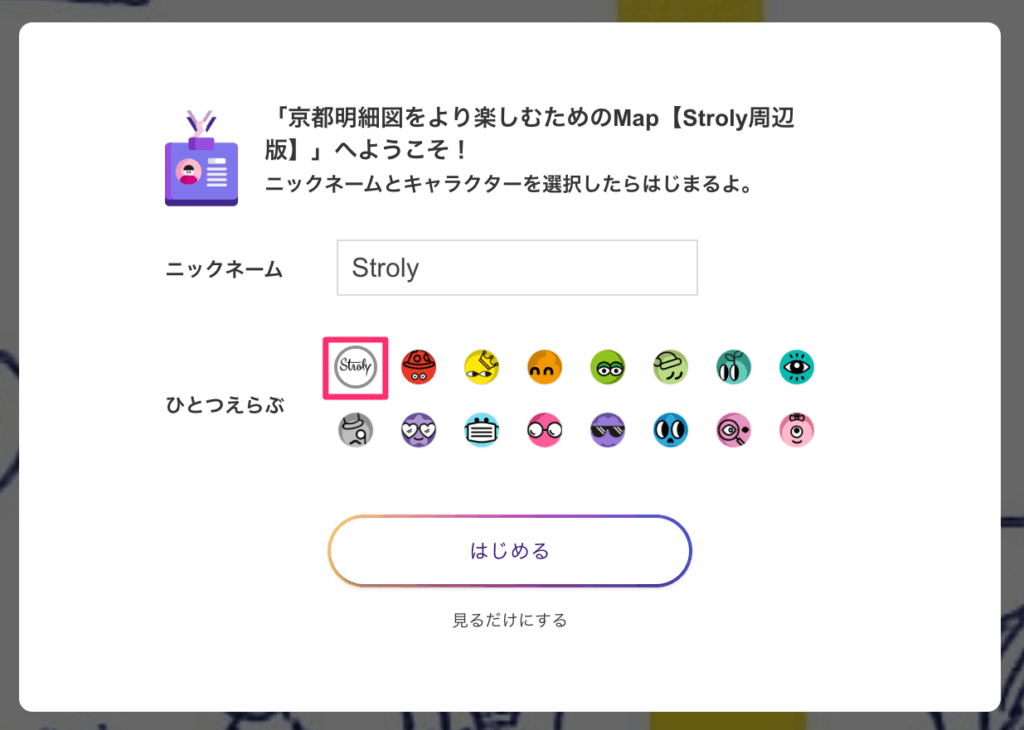
Character selection is available only when you use Group Mode. You choose a character as you join the map, and it appears at your own position on the map. If you are logged in to Stroly, you can also select the image set in your profile.
3. “View only” mode
If you select “View only” when joining a map, you will not be shown to other participants. Some features, such as chat, are also restricted.
4. Location sharing mode
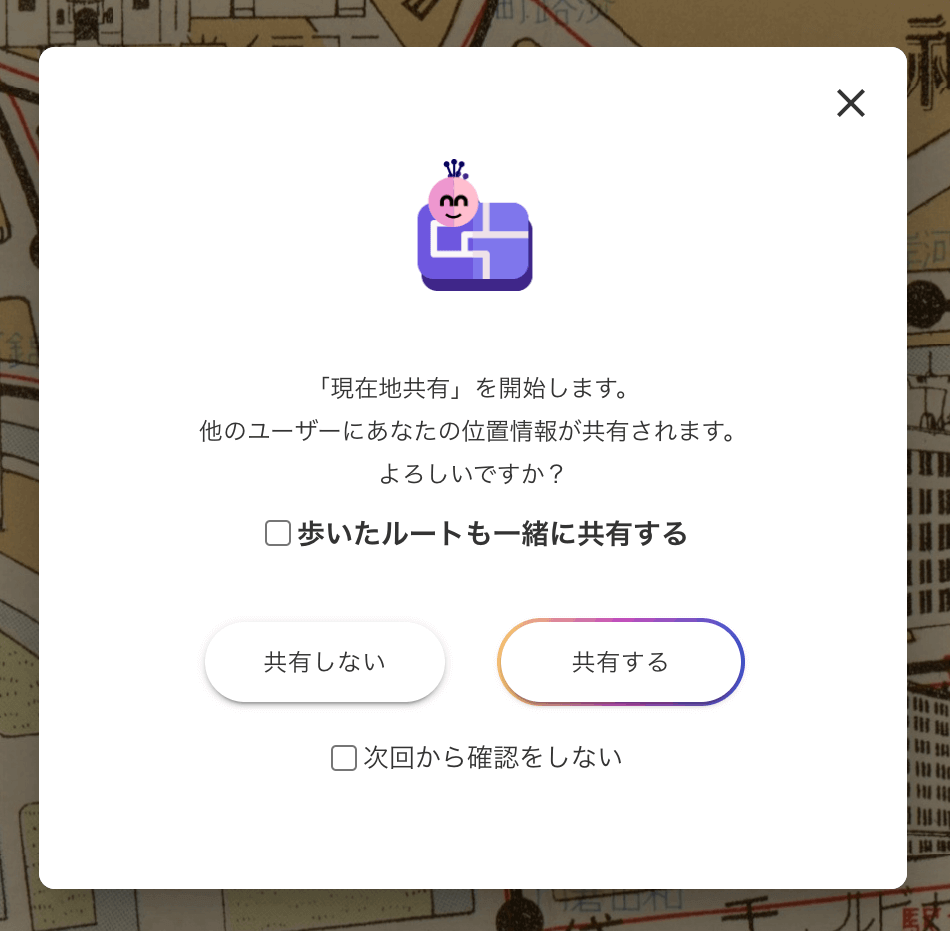
Location sharing is available when you are using Group Mode. Click the GPS button at the bottom right of the map to open the screen and start sharing your location. Once you start sharing, your character moves to match your actual current location. As you move in real life, your character on the map moves along with you.
To share your location, your current location must be within the map’s coverage area. Your location is shared when it differs by 5 m or more from the previous reading.
If you are not sure how to allow location (GPS) access, please see here.
5. Sharing the route you walked
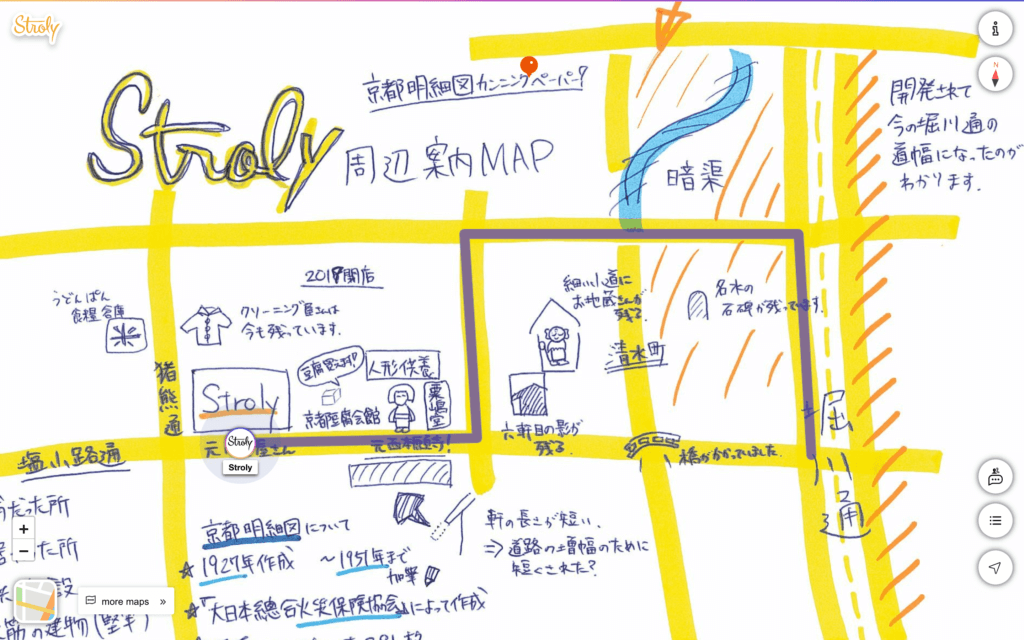
On the location sharing screen shown when you access a map via a group URL, if “Also share the route you walked” is checked, the route you actually walk is drawn on the map. The route is updated each time you move 5 m or more. It can be seen by all users participating in the map through Group Mode.
6. Chatting with others
Chat is available from the icon at the bottom right of the map, and lets you communicate with other users on the map. You can use not only text but also emoji. Chat content can be seen by all users in the same Group Mode.
7. Comments and pin marks
Each comment shows the character and name of the person who posted it, and a pin mark appears on the right side of your own comments only. Clicking a comment takes you to the position on the map where it was posted. Comments are kept even after you leave the map, until the cache is cleared.
About the pin mark to the right of a comment
When you click the pin mark to the right of a comment, a pin appears at the map location where the comment was posted, and clicking the pin shows the comment’s content. In the comment list, the pin mark is shown only on your own comments. The pins themselves can be seen by all users participating in the map.
8. User list
The user list appears when you click the chat button at the bottom right of the map. It shows the users participating in the map and their number. Clicking a user’s character takes you to that user’s position on the map.