
Ever find yourself browsing a Stroly map and wishing you could save “a spot that caught your eye” or “a place you’d like to visit again”?
That’s exactly what the “My List” feature is for.
What is My List?
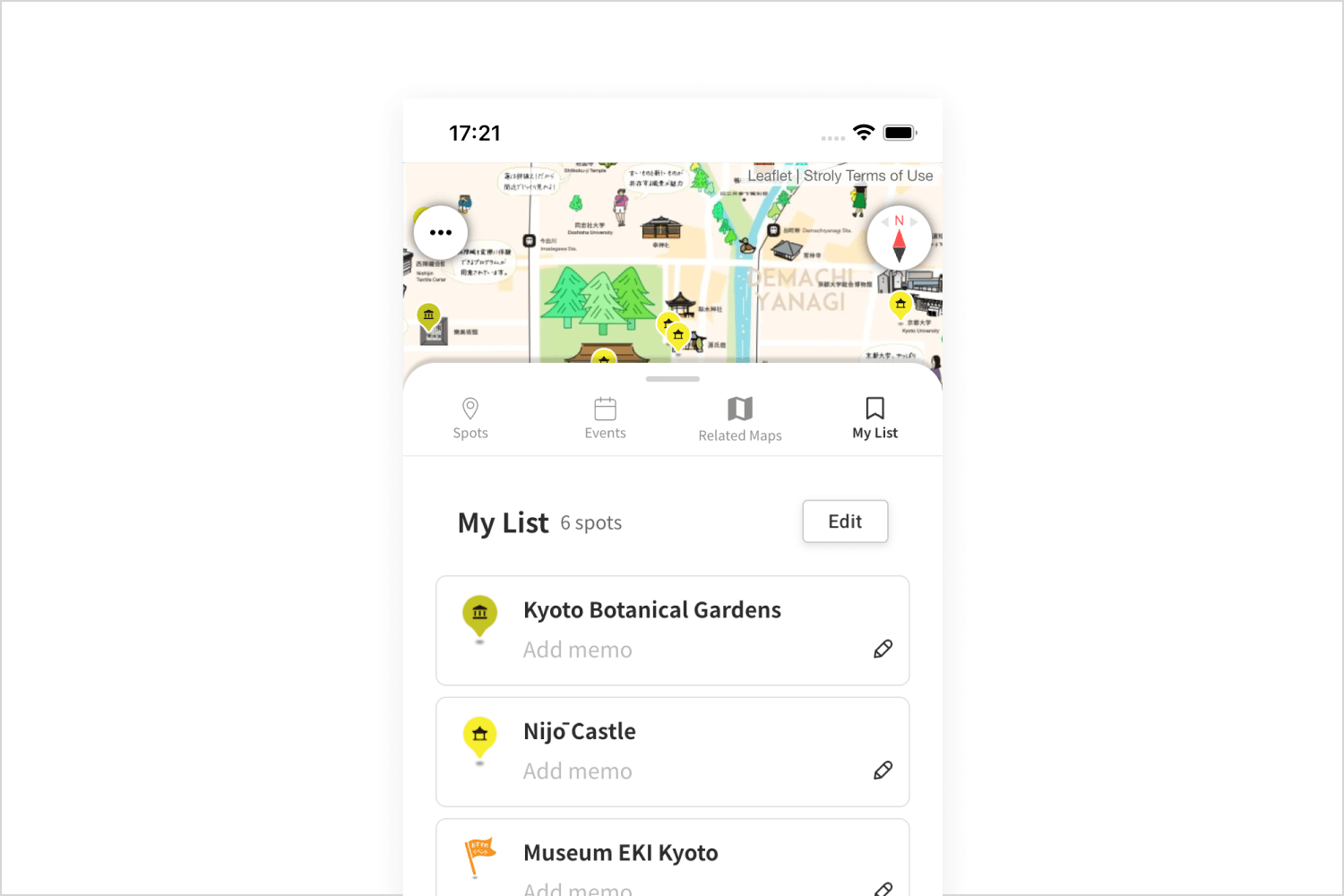
My List lets you save spots of interest directly from a map. Saved spots appear in a convenient list view, and are also marked with a bookmark icon on the map itself, so you can spot them at a glance.
Adding notes to a spot
You can attach a short note to any spot you save.
- Example uses: “Recommended by a friend,” “Lunch spot to try,” “Closed on Wednesdays,” etc.
- Good to know: Notes are meant for brief reminders (up to 31 characters).
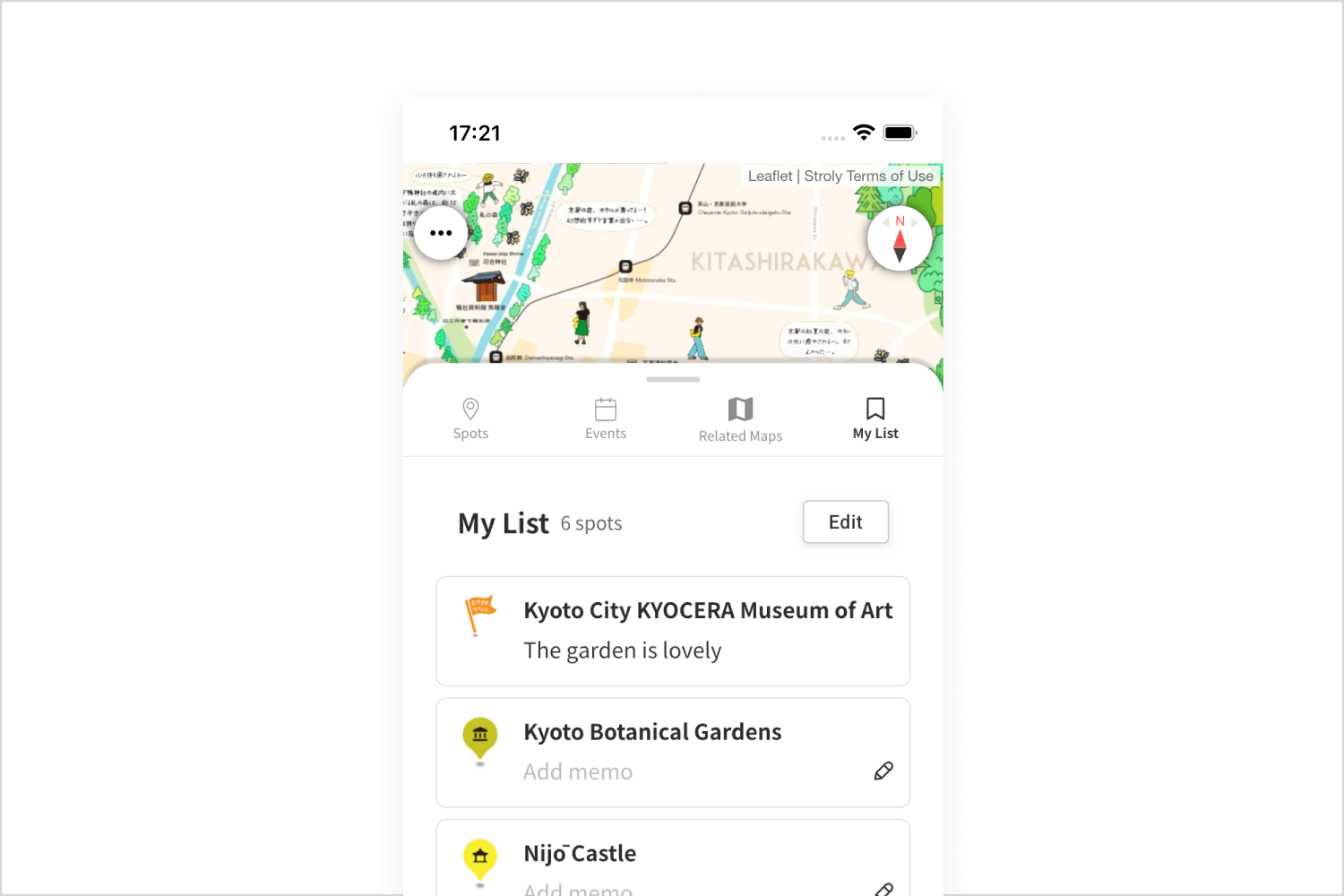
Viewing and editing your My List
You can manage your saved spots as follows:
- View your list: Open the drawer menu at the edge of the screen and select “My List” to see all your saved spots at once.
- Reorder or delete spots: Tap the “Edit” button on the My List screen to:
- Reorder: Rearrange the order of your spots to set your own route or priorities.
- Delete: Remove spots you’ve already visited or no longer need from your list.
How to save a spot
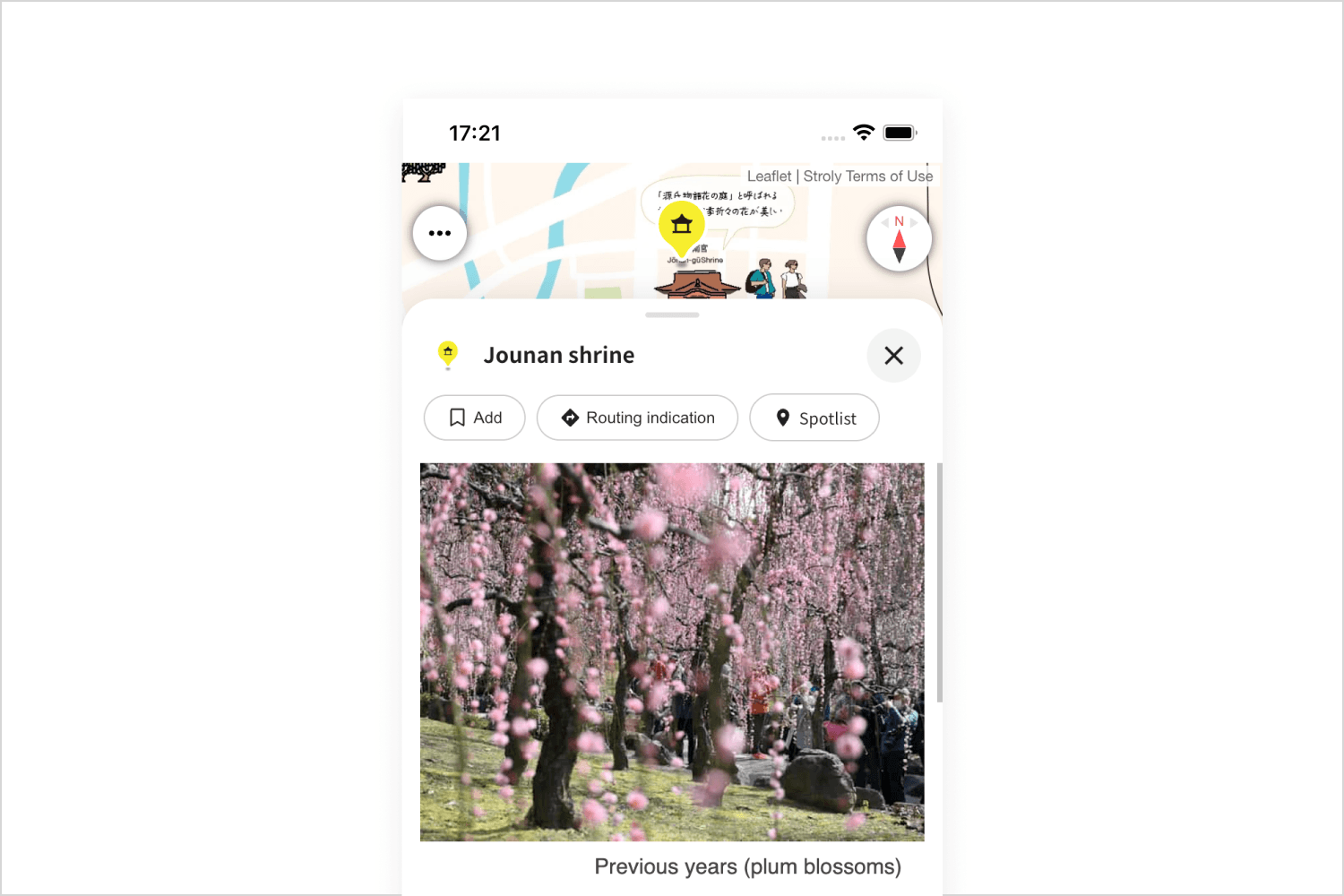
Select a spot you’re interested in, then tap the “Add” button on the spot’s detail screen — that’s it, it’s saved.